Lanteria HR is integrated with LinkedIn Recruiter (starting from version 25.3.1)
A LinkedIn Recruiter account is a professional hiring platform that provides recruiters with advanced tools for finding and managing candidates, including a full corporate version and a more basic "Recruiter Lite" option. These accounts are distinct from personal LinkedIn accounts and offer features such as more advanced search filters, increased InMail messaging credits, collaboration tools, and the ability to see more search results. You access these accounts through the "Recruiter" icon on your LinkedIn homepage, and they require a personal LinkedIn account.
As a result of this integration, LinkedIn becomes one of the job publishing options in Lanteria HR. Every six hours, LinkedIn retrieves all job openings posted on the Candidate Self-Service with the LinkedIn publishing option.
Each job opening retrieved from Lanteria HR and posted via LinkedIn includes a link to the vacancy on Lanteria HR’s Candidate Self-Service site, so candidates can follow it to open the vacancy and apply in Lanteria HR.
To setup integration with LinkedIn Recruiter, you need to:
- Have a LinkedIn Recruiter account
- Configure and enable the LinkedIn job publishing option. Note that you will also need a Candidate Self-Service site where job openings are initially published, and which will be used as a link between Lanteria HR and LinkedIn.
- Create and publish job openings with the LinkedIn publishing option.
LinkedIn Integration Configuration
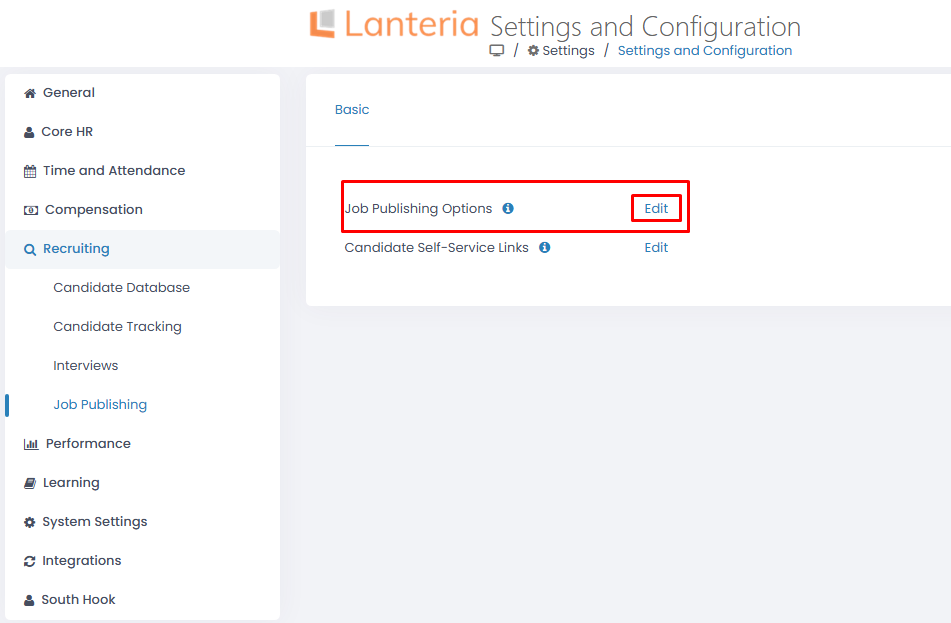
- Go to Settings → Settings and Configuration → Recruiting → Job Publishing → Job Publishing Options
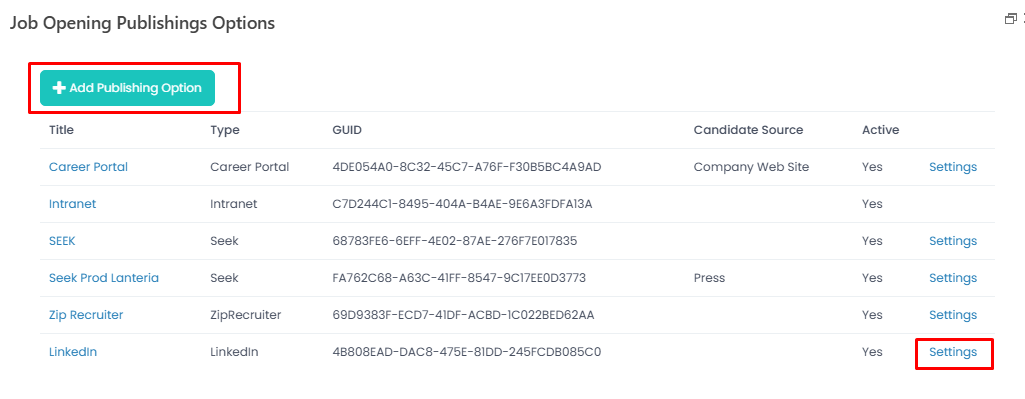
- Add the LinkedIn publishing option and then click Settings
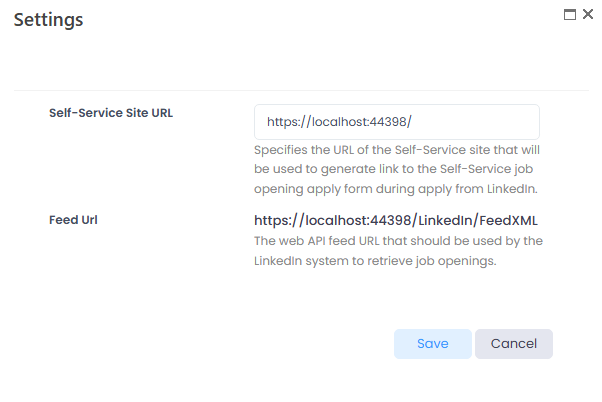
- Specify the Self-Service Site URL (candidate self-service site) that works on LinkedIn publishing, and it will automatically show the Feed URL needed for the next step
- Connect Lanteria LinkedIn Job XML Feed to the LinkedIn recruiter dashboard.
Complete the following steps in LinkedIn Recruiter:
- As an Admin user, go to Product settings and select Job posting in the left-hand rail.
- In the section "ATS Sources for Automated Job Postings", select View/Edit.
- Select Add new ATS source.
- From the "Select your ATS" drop-down, select LinkedIn Jobs XML.
- For the "Job source URL" field, enter the URL that hosts your LinkedIn Jobs XML feed - our Feed URL from Lanteria HR specified in the previous step.
- Select the company page the jobs should be associated with on LinkedIn.
- Click Add source.
- A ticket has been created for the LinkedIn support team, and they will inform you once the jobs from your feed are posted on LinkedIn. You will also receive an email confirmation that you can use to contact the support team.