This integration is available from version 26.2.3 and later
Configuring Microsoft Teams Meetings for Interviews via Microsoft Graph
Overview
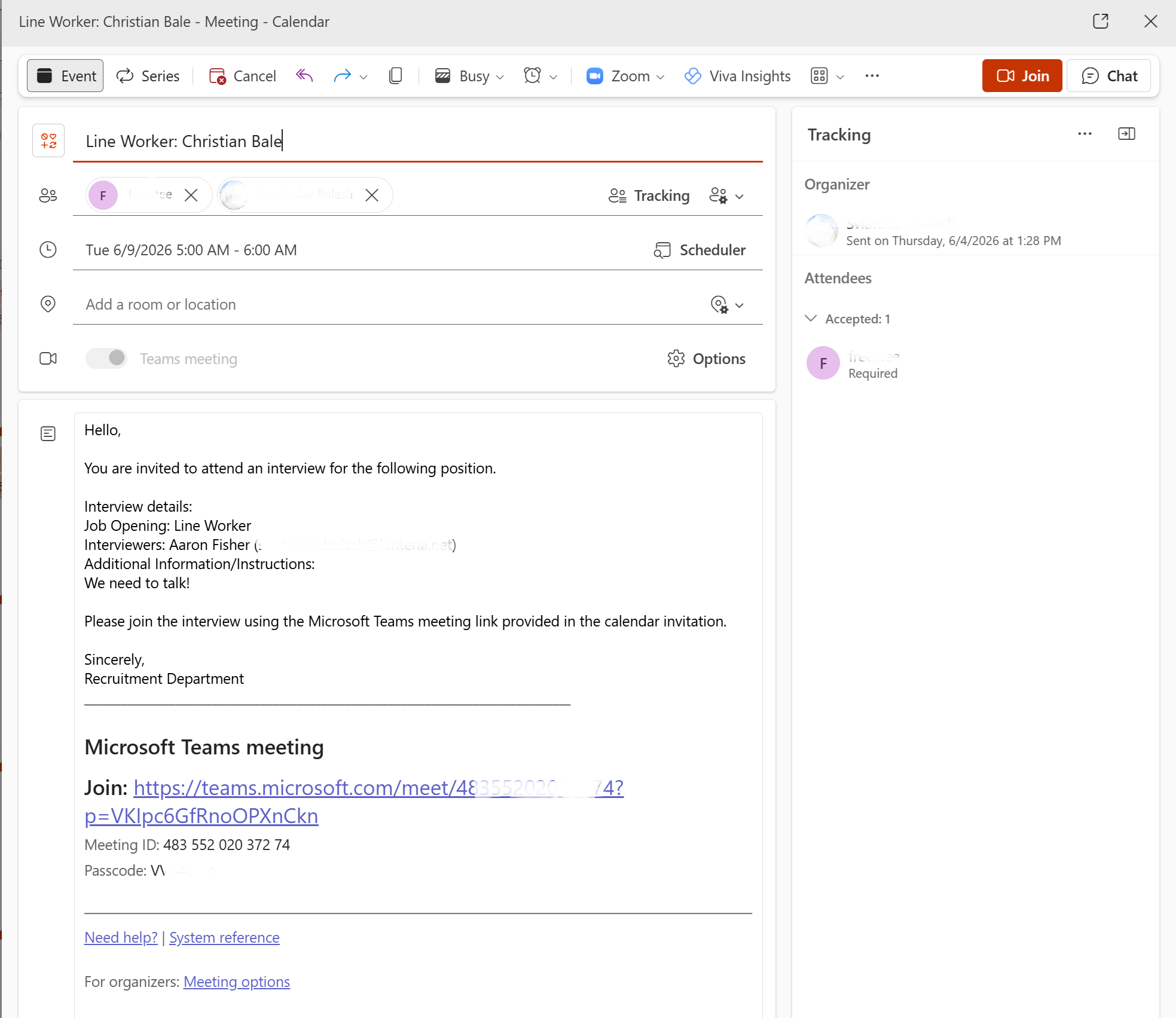
Lanteria HR supports creating native Microsoft Teams meetings for scheduled interviews. Previously, the system generated standard non-Teams Outlook meeting shells with a Teams link pasted into the description. With the Microsoft Graph integration enabled, Lanteria generates authentic Teams meeting notices. This provides interviewers with full native functionality, including direct "Join" buttons, Copilot support, and advanced meeting options.
Step 1: Configure Microsoft Entra ID Permissions
Before enabling the integration in Lanteria, an administrator must create and configure an app in Microsoft Entra ID (formerly Azure AD) with the appropriate Microsoft Graph permissions.
Ensure your Entra ID application is granted the following API permissions on the Application level:
Calendars.ReadWrite: Allows the system to read and write calendar events.
OnlineMeetings.ReadWrite.All: Required for creating the native Microsoft Teams meeting link and properties.
User.Read.All: Allows the application to read user profiles needed for meeting organization.
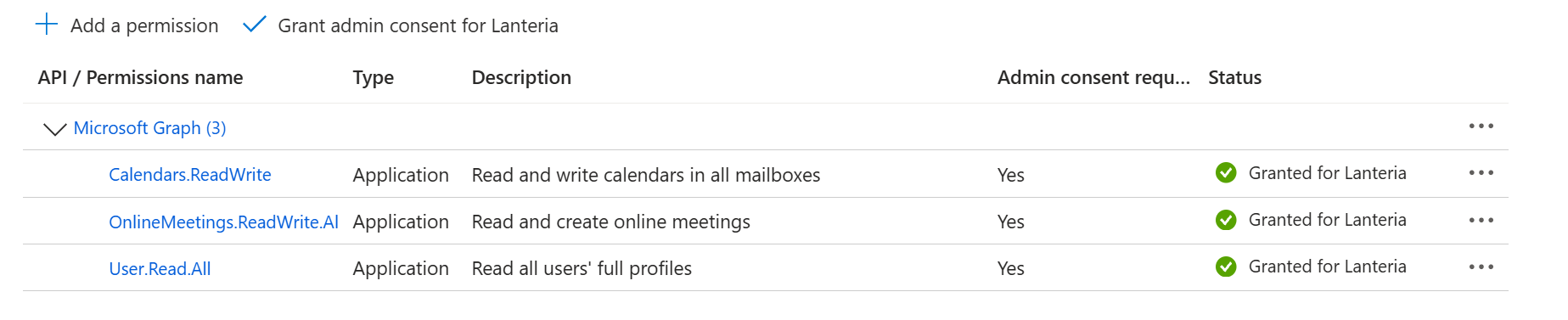
Admin consent must be granted for your organization to approve the permissions.
Make sure to capture your Tenant Id, Client Id, and Client Secret after configuring the app, as you will need them for the next step.
Client secret expiration
Make sure to set a reminder before the client secret expires.
You’ll need to generate a new client secret and update it in Lanteria HR before it expires
Step 2: Enable the Integration in Lanteria HR
Once the Entra ID application is ready, you can configure the connection within the Lanteria HR settings.
Navigate to Settings → Settings and Configuration → Integrations.
Select Microsoft Graph Integration.
Enter the required credentials generated from your Entra ID setup (Tenant Id, Client Id, and Client Secret).
Toggle the integration to Enabled.
Click Save.
Note on Validation: When you save the configuration, the system automatically validates the credentials to grab an access token. If validation is unsuccessful, the system will display an error notification and automatically disable the integration.
Step 3: Scheduling Native Teams Interviews
Once the integration is successfully enabled, HRs and recruiters can begin scheduling native Teams meetings.
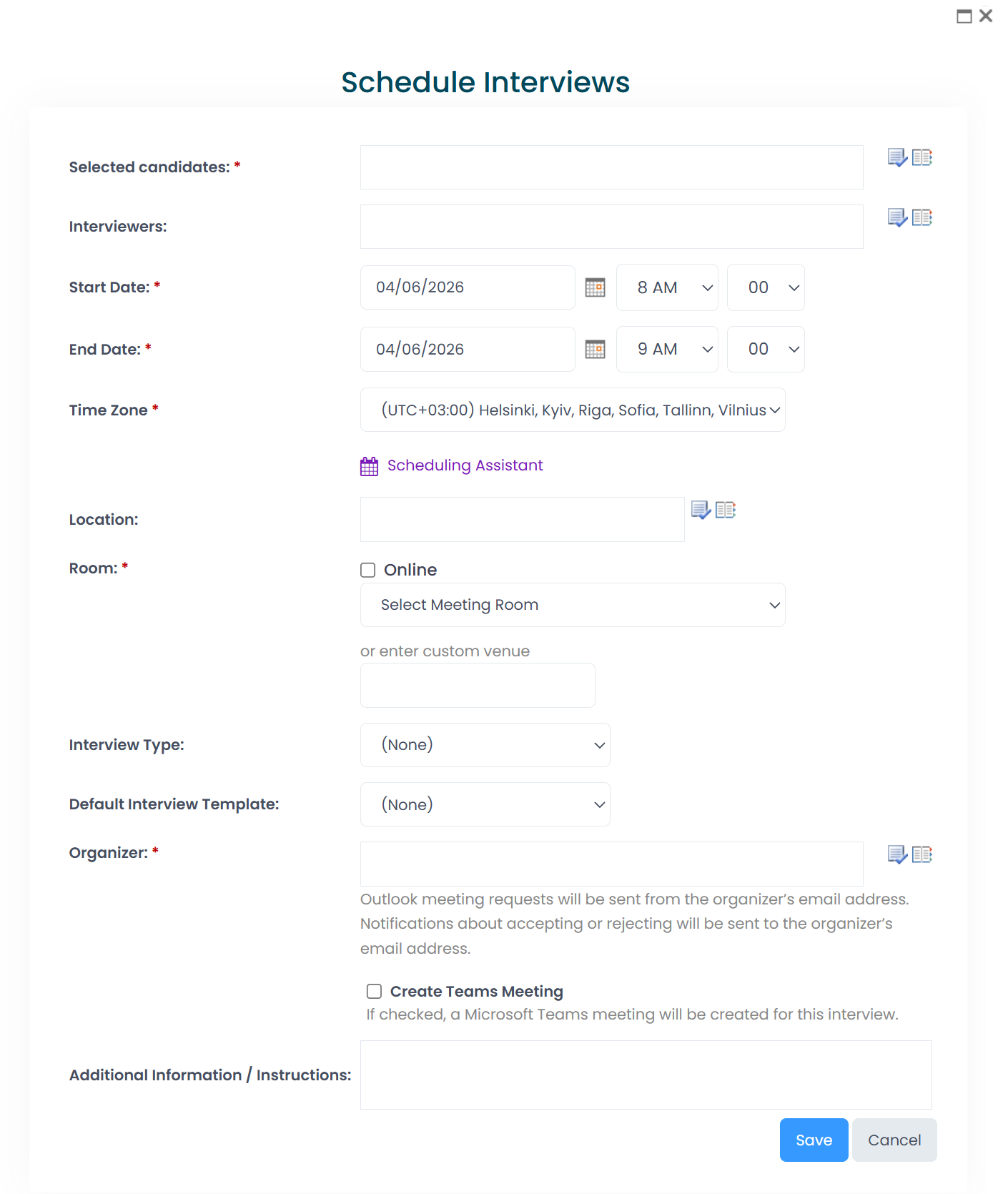
Create Teams Meeting button on the Schedule Interview form
This button becomes unavailbe, link to the Teams meeting will be automatically generated by Microsoft.

How it Works
When creating a new interview, simply check the Create Teams Meeting checkbox.
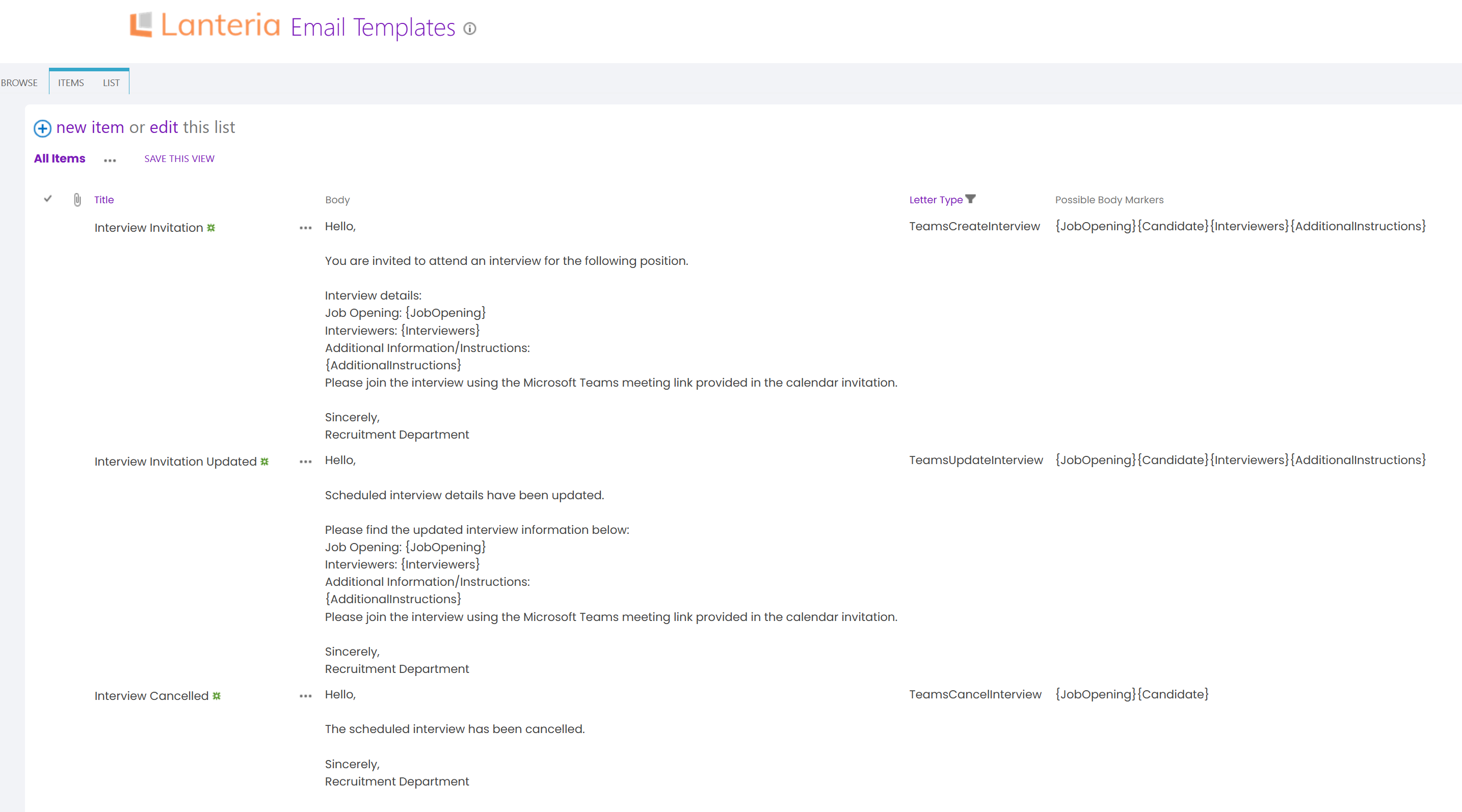
The system will automatically utilize three newly added email templates specifically designed for creating, updating, or canceling Teams interviews.
If the organizer cancels the event directly in Outlook, simply edit and update the interview form in Lanteria, and the system will automatically recreate the meeting.
Fallback Behavior
The system maintains backward compatibility. If the Microsoft Graph integration is disabled, or if the Create Teams Meeting checkbox is left unchecked, the standard letter templates will be used, and standard meetings will be generated just as they were previously. Additionally, on older edit forms, the new checkbox will be disabled for editing.
Customizing Teams Email Templates
When the Microsoft Graph integration is active and the Teams meeting option is utilized, Lanteria sends notifications using dedicated, fully editable email templates.
To view and modify these templates, navigate to: Settings → Settings and Configuration → General → Notifications and Reminders → Advanced → Email Templates
Three new templates manage the interview lifecycle. You can customize the body text for each template to fit your organization's voice while utilizing specific body markers to automatically populate interview details: