When you upload a document for a job candidate, you can specify a document type. Set up candidate document types that will be available for selection.
Follow these steps to set up candidate document types:
- Go to Settings > Settings and Configuration > Recruiting.
- Click Candidate Database in the left panel, and then click Edit next to the Candidate Document Types setting.
.png)
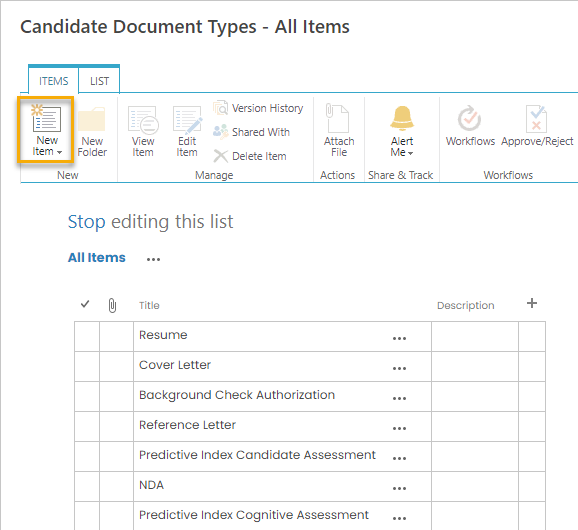
- In the Candidate Document Types window, on the Item tab, click New Item to create a new document type or click the title of an existing one to edit it. Alternatively, you can fill in or edit the fields directly on the list.
- In the Title field, type a title of the candidate document type.
- Optionally, in the Description field, type a description of the document type.
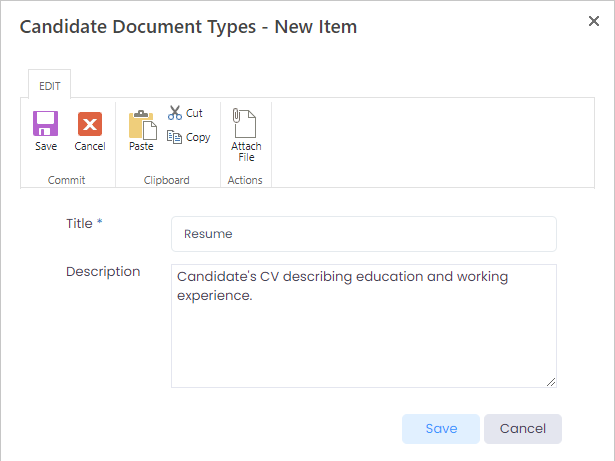
- Click Save.