Lanteria HR can automatically close HR HelpDesk requests that have not been updated for a specified period of time. This helps keep the request list current without requiring HR to close outdated requests manually.
Follow these steps to set up automatic closing of inactive HelpDesk requests:
- Go to Settings > Settings and Configuration > Core HR > HR HelpDesk.
- Select the Automatically close tickets check box to turn the feature on. It is cleared (off) by default.
- In the Statuses for automatic tickets closure field, select the request status(es) to check for inactivity, for example New or In Progress.
- In the Number of days when inactive ticket should be closed field, enter the number of days a request can stay unchanged in one of the selected statuses before it is closed automatically.
- Click Apply Changes.
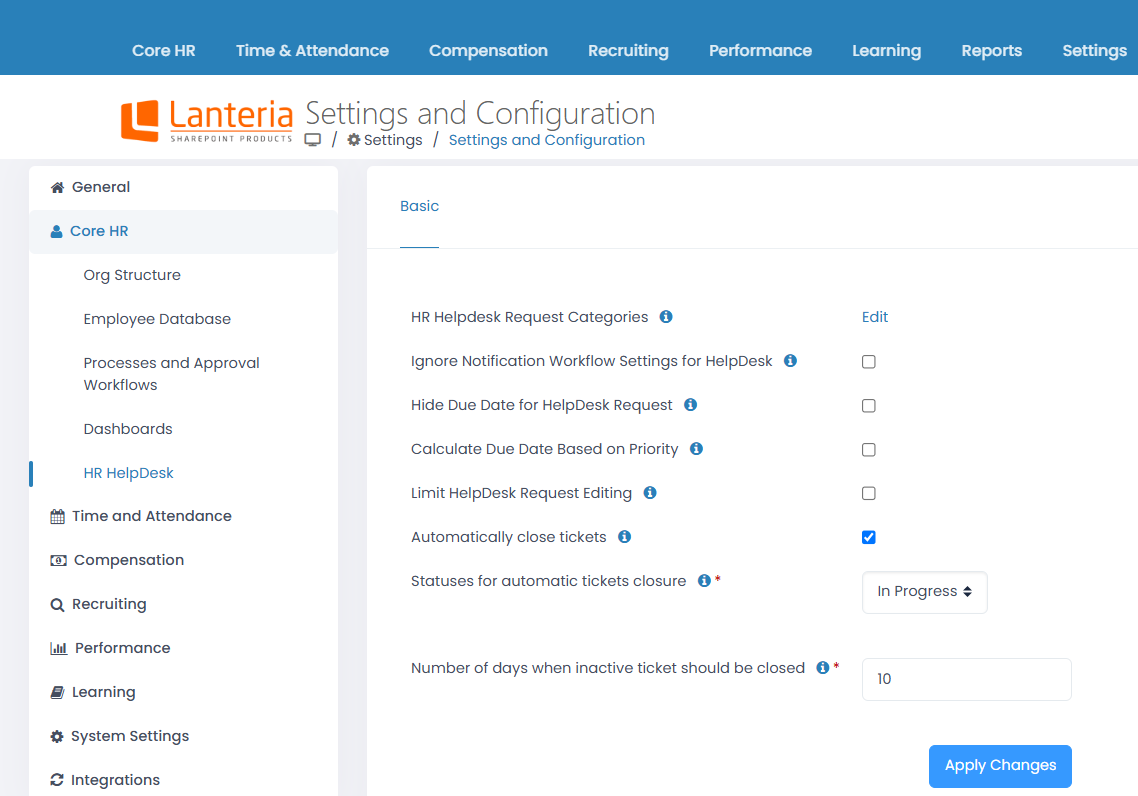
Note The Statuses for automatic tickets closure and Number of days when inactive ticket should be closed fields only appear — and are required — once Automatically close tickets is selected. You cannot save the settings if either field is left empty.
Once configured, the LHR - Clean HR Help Desk Request system job checks HelpDesk requests on a schedule. For every request whose status is one of the selected statuses and whose Modified date is older than the specified number of days, the job sets its status to Closed and adds a system message to the request's Comments section: "Automatically closed inactive ticket based on the system settings".
An automatically closed request can be reopened the same way as a manually closed one — see Process HelpDesk Request.