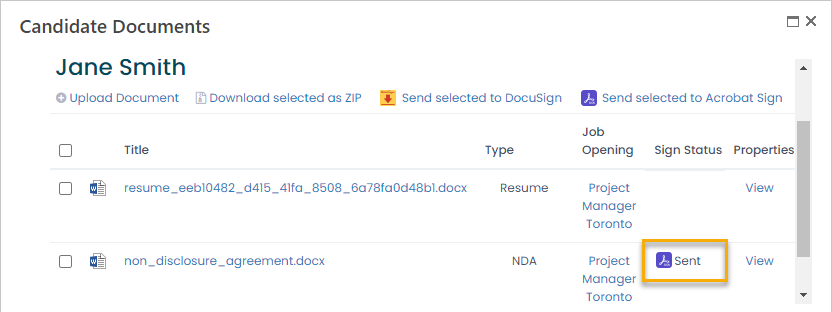
To send a document to candidate to electronically sign through Adobe Acrobat Sign, follow these steps:
- In Lanteria HR, go to Recruiting > Candidates, search for a candidate and click Actions > View Documents. Alternatively, after fining a candidate you can click his or her name to open the candidate card and then click Candidate Documents from the ribbon.
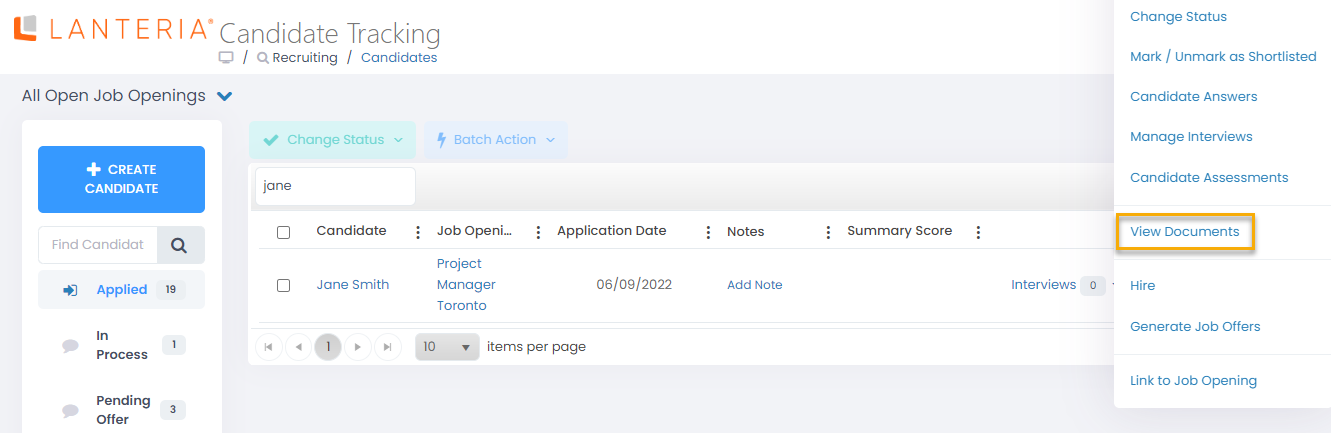
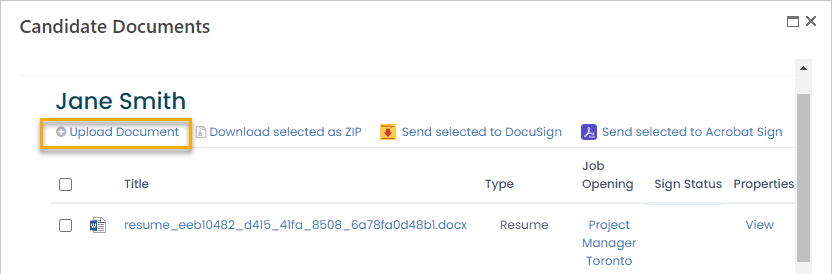
- Before a document can be sent for signing, it must be uploaded to Candidate Documents. Click Upload Document.
- Next, select a file and fill in the document properties.
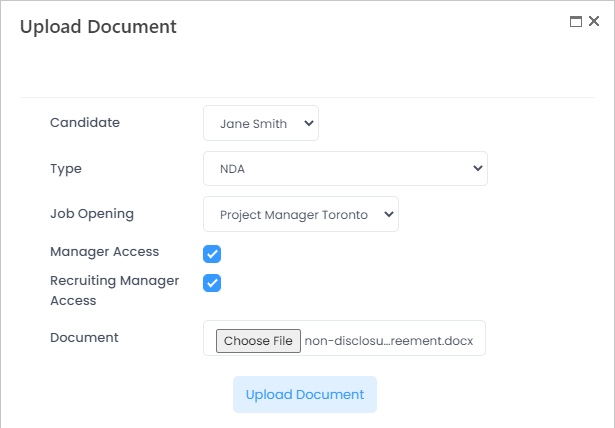
- Click Upload Document.
- Select a check box next to the uploaded document and click Send selected to Acrobat Sign.
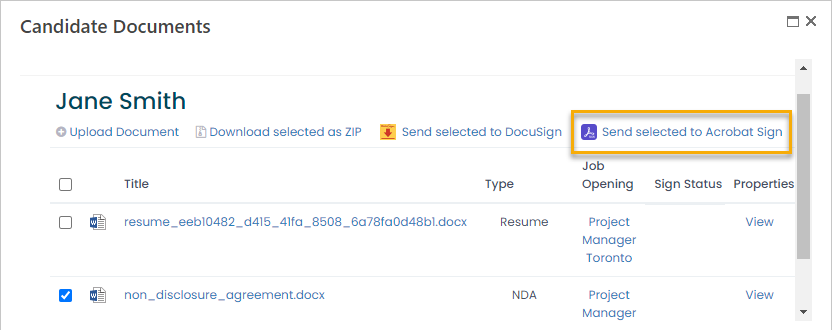
E-mail will be sent to candidate with directions on how to sign the document through Adobe Sign. The document status will be set to Sent.